Hi Friends,
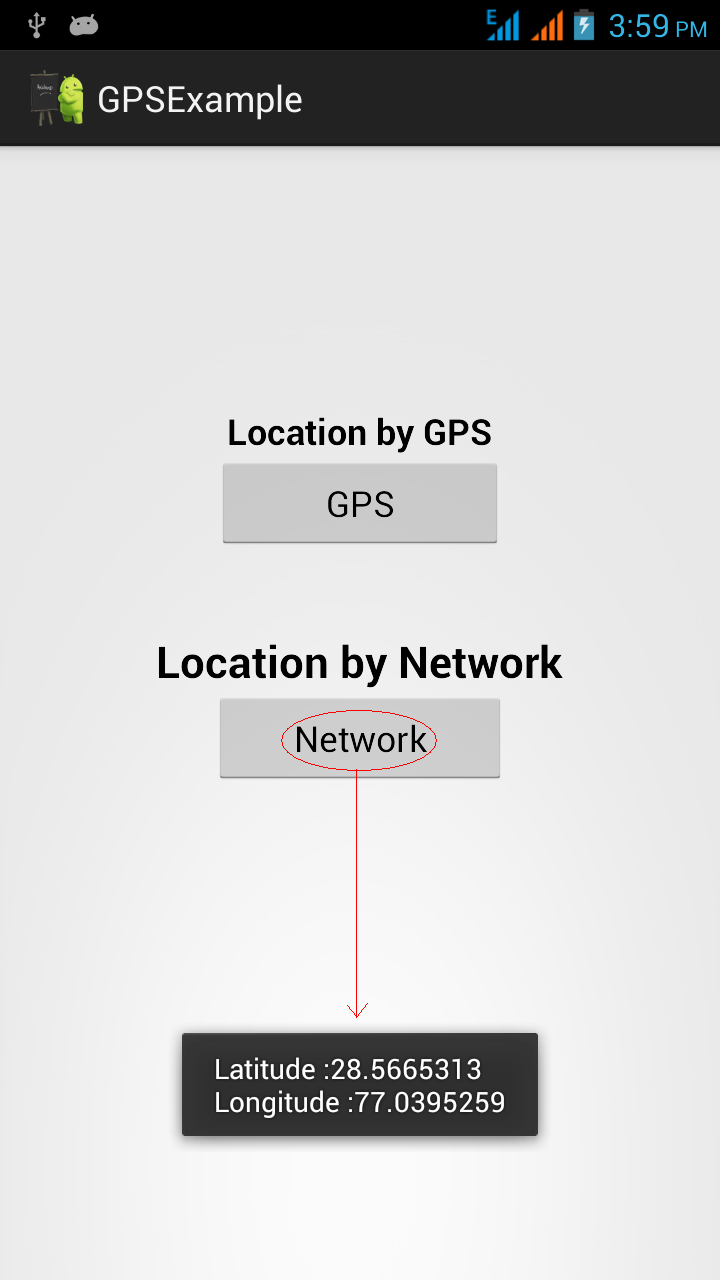
Here i am going to show you how we can start GPS pro-grammatically.
Example:


Codes :
activity_main.xml
<LinearLayout xmlns:android="http://schemas.android.com/apk/res/android"
android:layout_width="fill_parent"
android:layout_height="fill_parent"
android:orientation="vertical" >
<TextView
android:id="@+id/textView1"
android:layout_width="wrap_content"
android:layout_height="wrap_content"
android:layout_gravity="center"
android:layout_marginTop="20dp"
android:text="Turn on GPS Programmatically"
android:textStyle="bold" />
<Button
android:id="@+id/button1"
android:layout_width="wrap_content"
android:layout_height="wrap_content"
android:layout_gravity="center"
android:layout_marginTop="50dp"
android:text="Start GPS" />
<Button
android:id="@+id/button2"
android:layout_width="wrap_content"
android:layout_height="wrap_content"
android:layout_gravity="center"
android:layout_marginTop="20dp"
android:text="Stop GPS" />
</LinearLayout>
MainActivity.java
package in.androiddevelopmentanddiscussion.turningongpsprogrammatically;
import com.example.turningongpsprogrammatically.R;
import android.os.Bundle;
import android.app.Activity;
import android.content.Intent;
import android.view.Menu;
import android.view.View;
import android.view.View.OnClickListener;
import android.widget.Button;
public class MainActivity extends Activity {
Button start,stop;
@Override
protected void onCreate(Bundle savedInstanceState) {
super.onCreate(savedInstanceState);
setContentView(R.layout.activity_main);
start = (Button)findViewById(R.id.button1);
stop = (Button)findViewById(R.id.button2);
start.setOnClickListener(new OnClickListener() {
@Override
public void onClick(View v) {
Intent intent = new Intent("android.location.GPS_ENABLED_CHANGE");
intent.putExtra("enabled", true);
sendBroadcast(intent);
}
});
stop.setOnClickListener(new OnClickListener() {
@Override
public void onClick(View v) {
Intent intent = new Intent("android.location.GPS_ENABLED_CHANGE");
intent.putExtra("enabled", false);
sendBroadcast(intent);
}
});
}
@Override
public boolean onCreateOptionsMenu(Menu menu) {
// Inflate the menu; this adds items to the action bar if it is present.
getMenuInflater().inflate(R.menu.main, menu);
return true;
}
}
Manifest
Add below permissions in Manifest
<uses-permission android:name="android.permission.INTERNET"/>
<uses-permission android:name="android.permission.ACCESS_FINE_LOCATION"/>
<uses-permission android:name="android.permission.ACCESS_NETWORK_STATE"/>
Download full project from here

Check Android Apps on Google Play
https://play.google.com/store/apps/developer?id=Metro%20App%20Solution&hl=en
Here i am going to show you how we can start GPS pro-grammatically.
Example:
Codes :
activity_main.xml
<LinearLayout xmlns:android="http://schemas.android.com/apk/res/android"
android:layout_width="fill_parent"
android:layout_height="fill_parent"
android:orientation="vertical" >
<TextView
android:id="@+id/textView1"
android:layout_width="wrap_content"
android:layout_height="wrap_content"
android:layout_gravity="center"
android:layout_marginTop="20dp"
android:text="Turn on GPS Programmatically"
android:textStyle="bold" />
<Button
android:id="@+id/button1"
android:layout_width="wrap_content"
android:layout_height="wrap_content"
android:layout_gravity="center"
android:layout_marginTop="50dp"
android:text="Start GPS" />
<Button
android:id="@+id/button2"
android:layout_width="wrap_content"
android:layout_height="wrap_content"
android:layout_gravity="center"
android:layout_marginTop="20dp"
android:text="Stop GPS" />
</LinearLayout>
MainActivity.java
package in.androiddevelopmentanddiscussion.turningongpsprogrammatically;
import com.example.turningongpsprogrammatically.R;
import android.os.Bundle;
import android.app.Activity;
import android.content.Intent;
import android.view.Menu;
import android.view.View;
import android.view.View.OnClickListener;
import android.widget.Button;
public class MainActivity extends Activity {
Button start,stop;
@Override
protected void onCreate(Bundle savedInstanceState) {
super.onCreate(savedInstanceState);
setContentView(R.layout.activity_main);
start = (Button)findViewById(R.id.button1);
stop = (Button)findViewById(R.id.button2);
start.setOnClickListener(new OnClickListener() {
@Override
public void onClick(View v) {
Intent intent = new Intent("android.location.GPS_ENABLED_CHANGE");
intent.putExtra("enabled", true);
sendBroadcast(intent);
}
});
stop.setOnClickListener(new OnClickListener() {
@Override
public void onClick(View v) {
Intent intent = new Intent("android.location.GPS_ENABLED_CHANGE");
intent.putExtra("enabled", false);
sendBroadcast(intent);
}
});
}
@Override
public boolean onCreateOptionsMenu(Menu menu) {
// Inflate the menu; this adds items to the action bar if it is present.
getMenuInflater().inflate(R.menu.main, menu);
return true;
}
}
Add below permissions in Manifest
<uses-permission android:name="android.permission.INTERNET"/>
<uses-permission android:name="android.permission.ACCESS_FINE_LOCATION"/>
<uses-permission android:name="android.permission.ACCESS_NETWORK_STATE"/>
Download full project from here
Check Android Apps on Google Play
https://play.google.com/store/apps/developer?id=Metro%20App%20Solution&hl=en